Menu bar clipboard, minus the cloud.

The Mac clipboard bar
with local OCR.

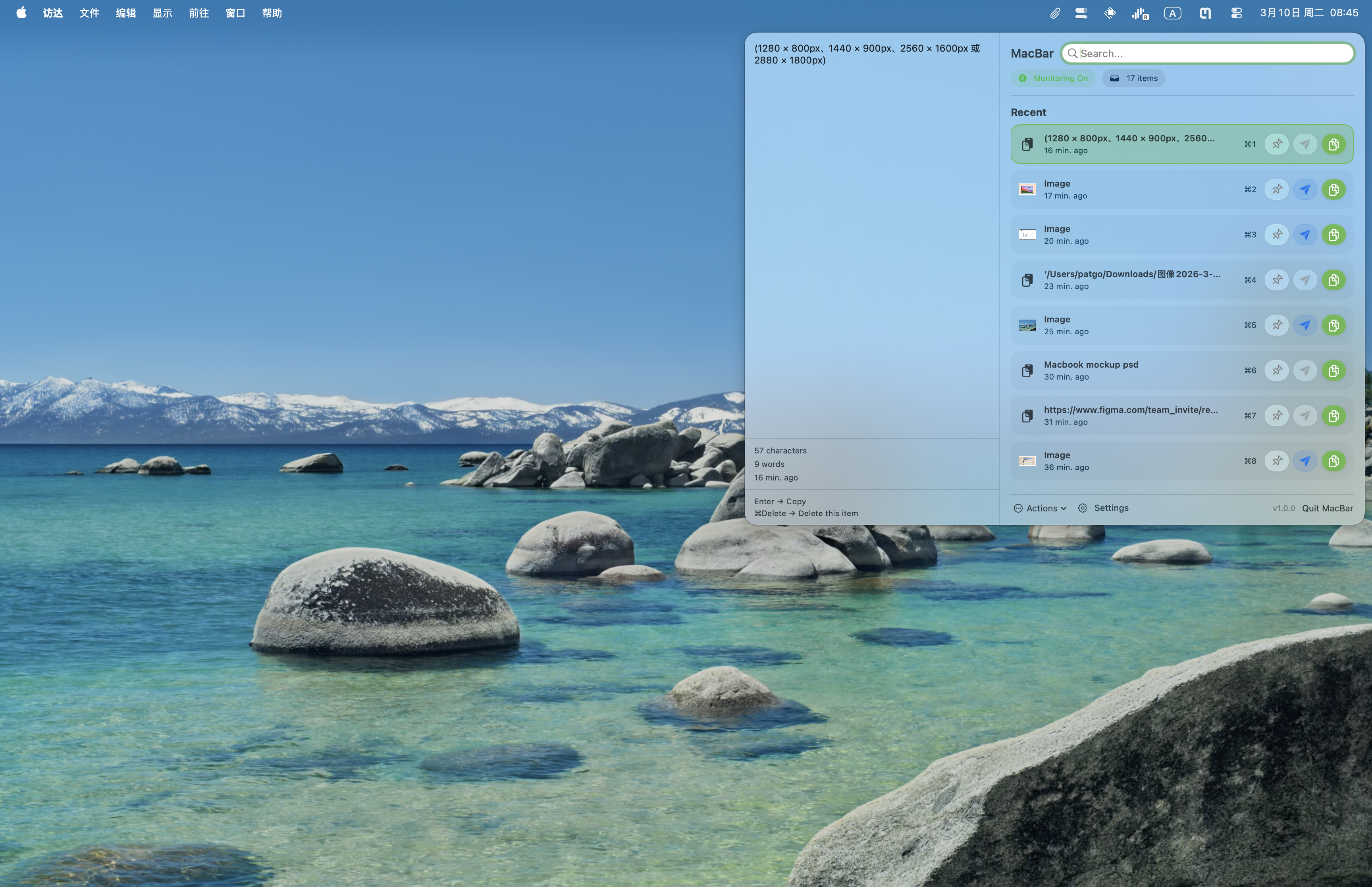
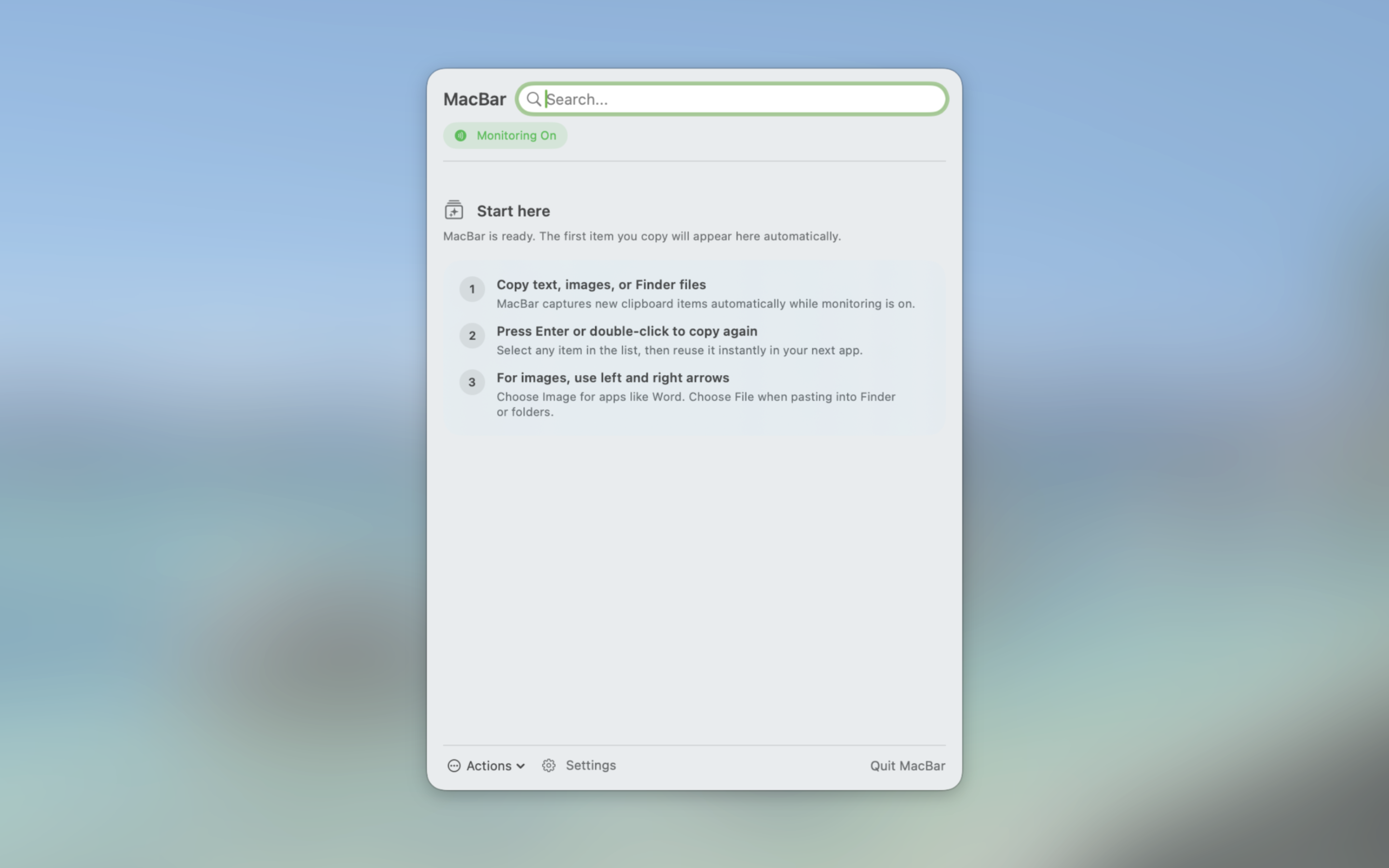
MacBar captures text, images, and Finder files, extracts OCR on-device, and gets you back to paste in one clean loop.

Hotkey ⇧⌘M
Searches Text + OCR + files
Runs on macOS 14+, Apple Silicon
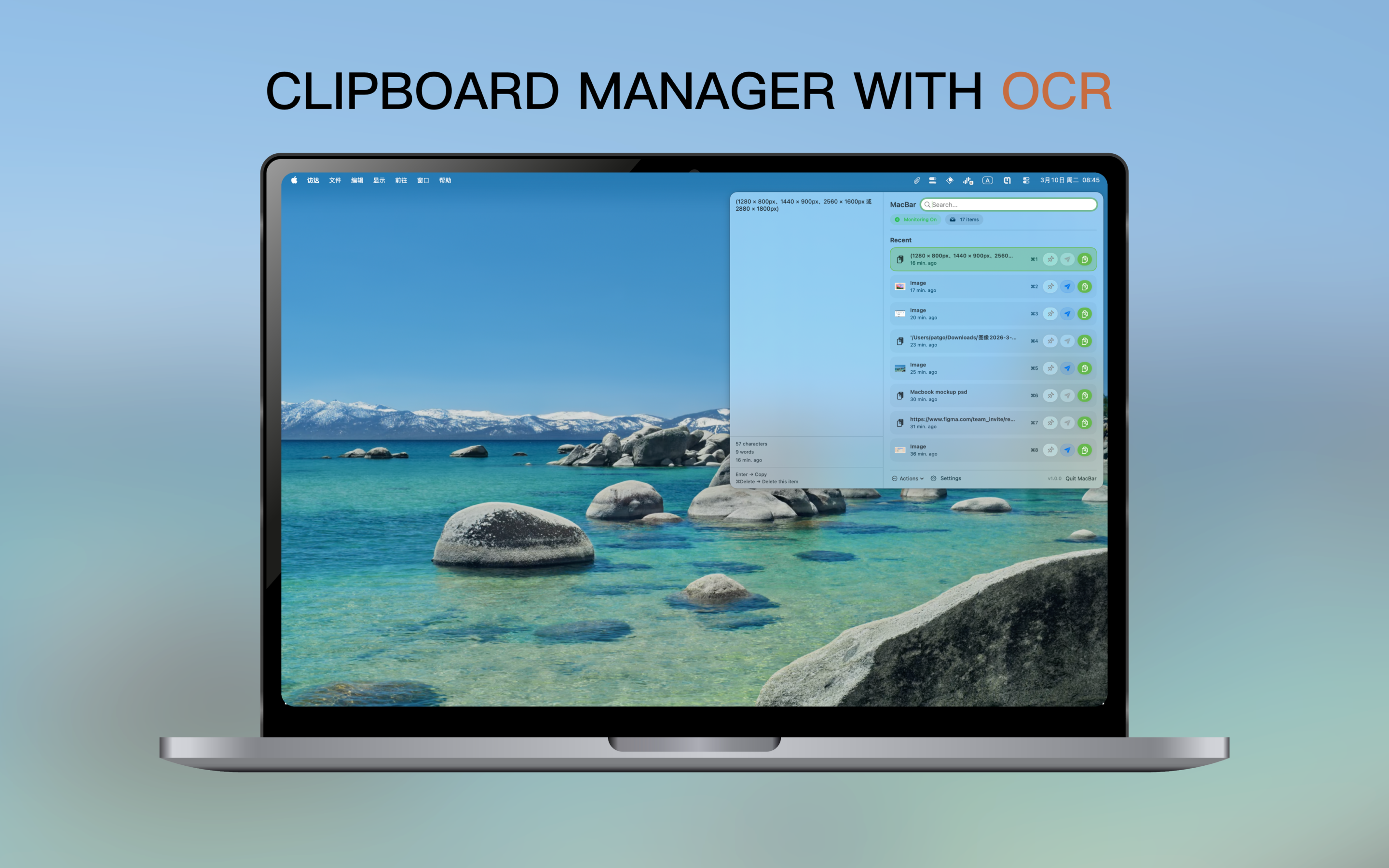
MacBar showing clipboard history and OCR preview on top of a browser window

Built for the copy-paste loop you actually repeat all day

No cloud Clipboard history stays on your Mac.
No telemetry No analytics, no crash SDK, no third-party dependencies.
Keyboard-first Open fast, search fast, copy fast, and get out of the way.
Open source MIT licensed and easy to inspect.

Why MacBar

It treats screenshots like information, not dead pixels.

OCR that matters

Pull text out of screenshots without leaving your workflow.

Error dialogs, annotated mockups, chat screenshots, terminal captures. Select the image, let Vision extract the text locally, then search or copy it back.

On-device via Apple Vision OCR text indexed for search One-click OCR copy

Search everything

Text, OCR, filenames, and full file paths in one search bar.

You do not need to remember where something came from. If it was copied, MacBar can help you find it.

File support

Finder files stay first-class, not flattened into plain text.

Copy files as usual, keep the full paths, paste them back later, or reveal them directly in Finder.

Feels instant

Copy and close, then go straight back to the app you were using.

The panel is tuned for repeated daily use: Enter copies, Escape clears then closes, and the UI gets out of your way.

Pinned memory

Keep frequently reused snippets fixed at the top.

Pin prompts, links, shell commands, and boilerplate text so they do not disappear in the scroll.

Languages

Switch across 164 interface languages without reinstalling.

The app language is saved locally and the UI follows user language habits instead of mechanically translating shortcuts.

Daily flow

Three beats. Copy, surface, paste.

01

Copy anything

Text, screenshots, or Finder files are captured quietly in the background.

02

Call MacBar

Hit ⇧⌘M, type a few letters, or use the arrow keys and shortcuts.

03

Paste and move on

Copy the item, let the panel get out of the way, and continue where you already were.

Where it helps most

Especially useful when your clipboard contains screenshots with real work inside them.

MacBar was built around practical screenshot-heavy scenarios where other clipboard managers usually stop at image previews.

Error messages in modal dialogs Numbers and annotations from design specs Code snippets shared as images Table fragments from docs or slides

Private by default

Your clipboard should not need a server.

MacBar keeps its scope intentionally narrow. It does not sync to the cloud, does not phone home, and does not depend on third-party libraries to handle your clipboard history.

Storage Local UserDefaults only
OCR engine Apple Vision on-device
Network usage GitHub Releases checks only
Clipboard control Monitoring can be paused any time

Get started

Install in a minute, then leave it in the menu bar.

Download the latest build directly from macbar.app, move the app into Applications, and approve the first launch in macOS Privacy & Security if Gatekeeper asks.

1 Download the latest zip from this site
2 Move MacBar.app to /Applications
3 Approve first launch if macOS blocks an unnotarized app

FAQ

A few things people usually want to know first.

Does MacBar upload my clipboard to the cloud?

No. Clipboard history stays local. OCR runs on-device. The only network-related feature is checking GitHub Releases for updates.

What can it capture?

Text, images, and Finder file copies. Search covers text content, OCR results from images, filenames, and full file paths.

Is it free?

Yes. MacBar is open source under the MIT license.

Representative perspectives

How MacBar fits into different screenshot-heavy workflows.

These are sample user perspectives based on common use cases, not verified customer testimonials.

Sample perspective

Frontend engineer

“The best part is not typing browser errors from screenshots by hand anymore.”

Works across terminal captures, bug reports, chat screenshots, and copied code fragments.

Sample perspective

Product designer

“Design annotations stop being trapped in images once OCR makes them searchable.”

Useful for spec screenshots, redline numbers, and quick visual references copied out of Figma or chat.

Sample perspective

Founder or operator

“I use it like a scratch buffer for links, files, meeting snapshots, and prompts all day.”

The value is speed: open, search, copy, and get back to the app you were already using.